Using APCM Behavioral Health Add-Ons in Sematic
Use this guide to set up, document, and bill APCM behavioral-health add-ons in Sematic.
Last updated: September 3, 2026
For Medicare requirements and source citations, see Sematic's APCM behavioral-health add-on G-code guide.
About the screenshots: These images use synthetic data from a Sematic demo clinic and may show different patients or service months. They show the General BHI workflow; CoCM uses the Care Event workflow described below.
| Code | Sematic uses it for |
|---|---|
G0570 | A qualifying General Behavioral Health Integration (General BHI) month |
G0568 | The first qualifying Collaborative Care (CoCM) month in an episode |
G0569 | A later qualifying CoCM month in the same episode |
Sematic derives the code from the patient's setup and documentation. Billing staff must explicitly include the proposed add-on on the same claim as the patient's APCM service.
Who does what
| Role | Primary responsibilities |
|---|---|
| Clinical or care-management staff | Review candidates, set up services, record consent, update the care plan, and document the month |
| Billing staff | Confirm readiness, include the add-on, and submit the APCM claim |
| Organization administrator | Maintain access and Athena configuration and manage CoCM team profiles |
Billing users can review readiness but cannot create missing clinical evidence.
Before you begin
Confirm that:
- Behavioral-health add-ons are enabled for your organization.
G0568,G0569, andG0570are configured in Athena.- The patient has an active APCM enrollment and billing practitioner.
- Staff have the required Sematic and Athena access.
- For CoCM, an administrator has configured an active Collaborative Care team and your organization operates a patient registry.
- Your practice has confirmed any applicable BHI initiating-visit requirement. Sematic does not collect or validate that evidence.
Quick workflow
- Review the patient and choose General BHI or CoCM.
- Set up services, record consent, and update the existing APCM care plan.
- Document the month's work.
- Wait for the monthly card to show Documented.
- Include the ready add-on during individual or bulk billing.
1. Review a candidate — clinical team
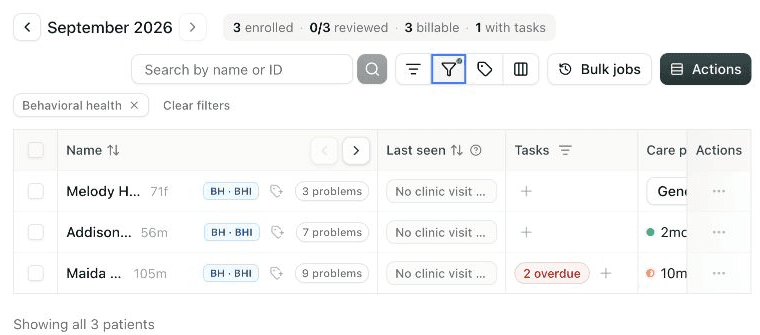
Use Clinical filters → Behavioral health candidates to find patients with an active F01-F99 diagnosis on the synced problem list. Set up BHI marks an unconfigured patient; BH · BHI or BH · CoCM opens a configured patient's monthly work.
The candidate signal is only a prompt for clinical review. It does not establish eligibility, enroll the patient, record consent, or add a charge.
2. Set up behavioral-health services — clinical team
Open the patient's APCM enrollment. Under Enrollment Settings → Behavioral health services, select Set up services.
In the setup form:
- Choose General BHI or Collaborative Care.
- Confirm the active behavioral-health diagnosis.
- For General BHI, select the Continuity team member. The existing APCM billing practitioner remains the billing practitioner for the add-on.
- For CoCM, select an active Collaborative Care team. If none is available, ask an administrator to review Organization Profile → EHR Integrations → Collaborative Care teams.
Select Save & continue to consent when consent is still needed, or Save changes when consent is current.
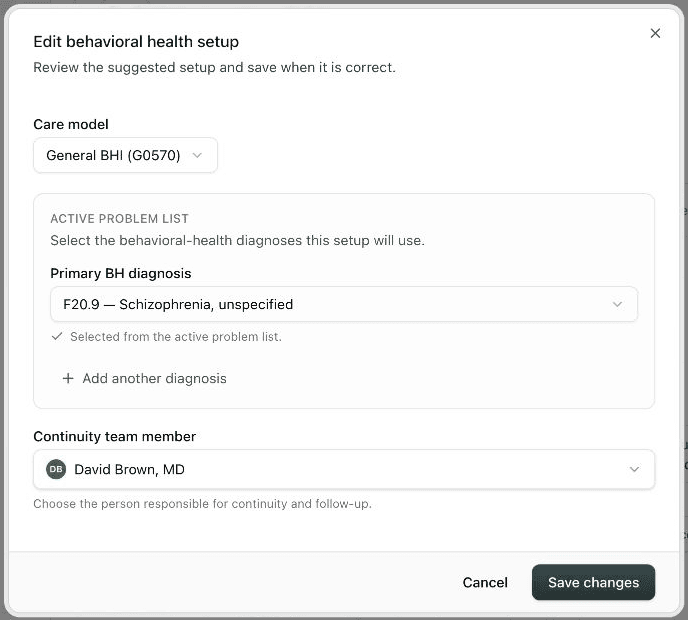
First-time setup continues to consent; an existing setup saves changes.
Changes apply prospectively. Months with saved activity retain the setup that applied when the work was recorded.
Update the care plan
Use the existing APCM care plan. Add the behavioral-health diagnosis, goals, monitoring, coordination, and team responsibilities during the next care-plan update. Sematic does not create a separate behavioral-health care plan.
3. Record consent — clinical team
Consent should cover behavioral-health integration, applicable specialist consultation, possible cost sharing, and the patient's ability to stop behavioral-health services without ending APCM.
- New APCM enrollment: Choose Include Behavioral Health Integration in this consent when the same conversation covers both services.
- Existing APCM patient: Under Behavioral health services, select Record BH consent, enter the consent type and date, and submit it for Athena documentation.
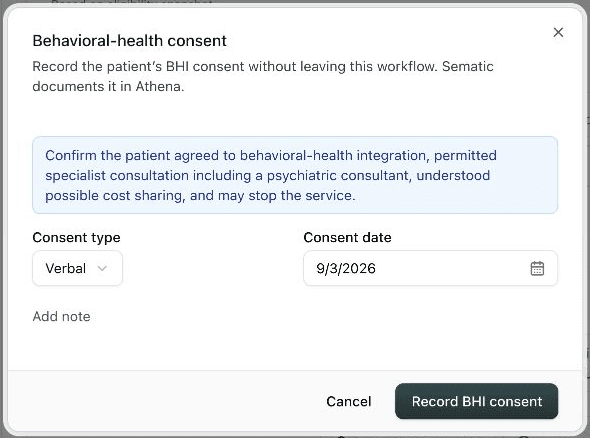
Confirm the disclosure with the patient, then record the consent type and date.
Wait for Consent on file before relying on the consent for billing. A billing-practitioner change requires new behavioral-health consent.
4. Document the month — clinical or care-management staff
Open the service month's Documentation workspace and find Behavioral health this month. The card shows the derived code and current status.
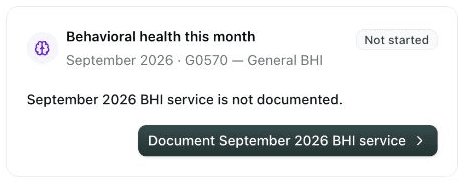
Record only work that was actually furnished. Service and event dates must fall within the selected month, cannot be in the future, and must be covered by the current practitioner-bound consent.
General BHI: one guided action
For a fresh General BHI month:
- Select Document [month] BHI service.
- Enter the Service date. Sematic also records it as the rating-scale administration date.
- Write a concise Patient-specific note describing the assessment, care-plan work, coordination, and continuity or follow-up that occurred.
- Enter the validated rating-scale name and score. Add an interpretation when useful.
- Select Save and document in Athena.
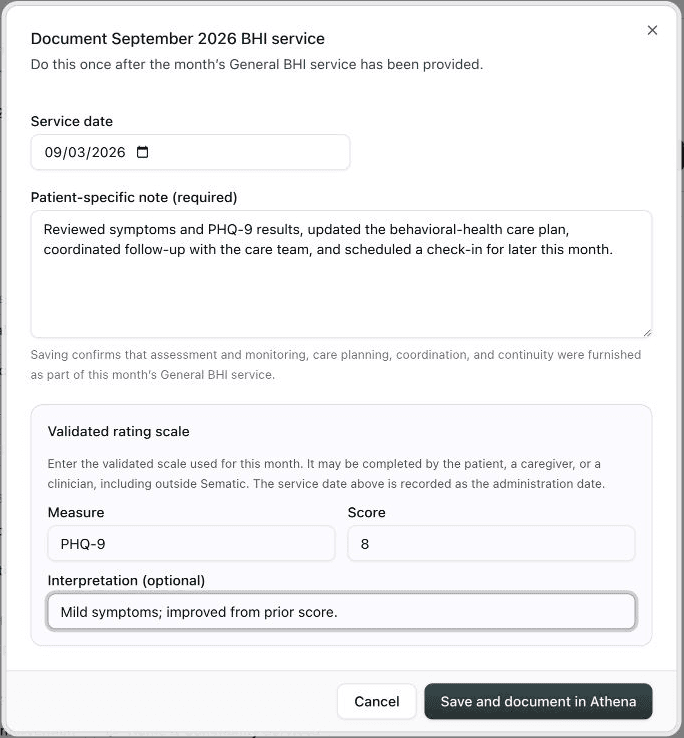
This example uses synthetic data.
The scale may be completed by the patient, a caregiver, or a clinician, including outside Sematic. Both the measure name and score are required.
Saving the action confirms that the service included:
- Assessment or follow-up monitoring with an applicable validated scale
- Behavioral-health care-plan review and any indicated change
- A patient-specific treatment facilitation or coordination action
- A patient-specific continuity activity by the appointed team member
Use the action once, after the complete monthly service. When Athena confirms the write, the card changes to Documented. If documentation does not complete, follow the action displayed on the card and verify uncertain results in Athena before retrying.
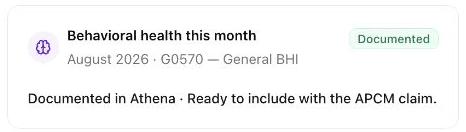
Documented confirms the Athena write. Billing staff must still include the add-on.
CoCM: document each Care Event
Select Add BH care event for each real interaction:
- Enter the event date and a concise patient-specific note.
- Select every Care area covered by that interaction.
- Add the required outcome measurement when prompted.
- Select Log Care Event. Use a separate Care Event for work on another date or in another interaction.
An existing eligible Care Event can count only when a clinical user explicitly selects Counts toward behavioral health this month and identifies the supported care areas.
Initial CoCM month
Document:
- Outreach and engagement
- Initial assessment and validated measurement
- Individualized treatment plan
- Psychiatric consultant review
- Registry entry and follow-up plan
- Dated caseload consultation activity
- A brief evidence-based intervention
Sematic derives G0568 for the first qualifying month of an episode.
Subsequent CoCM month
Document:
- Registry progress and adherence or tolerability
- Dated caseload consultation activity
- Care collaboration
- A brief evidence-based intervention
- Validated outcome measurement
Add psychiatric-consultant recommendations and relapse or discharge planning when applicable. Sematic derives G0569 only after a qualifying initial service.
Review and document detailed months
CoCM always uses the detailed care-area workflow. A General BHI month with existing partial or multi-event work may use it too.
For detailed General BHI, cover all four required areas and include the measure name and score on at least one assessment or monitoring Care Event.
When all required care areas are covered, the monthly card shows Ready. Select Review documentation → Document in Athena. The add-on becomes billable only after Athena confirms the write and the card shows Documented.
After documentation or billing, use Record correction Care Event for new chart information. For legacy drafts, follow the displayed restart or review action; protected evidence may require administrator or Sematic support.
5. Submit an individual claim — billing staff
In the patient's Billing view:
- Review the Behavioral-health add-on card and the derived code.
- Select Include add-on. If it is not ready, select Complete BH activity or return the displayed blocker to clinical staff.
- Confirm that the add-on is included, then review and submit the APCM claim. Select Remove add-on before submission to return to ordinary APCM.
Before submitting APCM: The add-on is opt-in, and Sematic cannot automatically amend a previously submitted base-only APCM claim. If a selected add-on becomes blocked before submission, Sematic stops that patient's claim instead of silently submitting APCM only.

This result confirms submission of both codes; it is not the opt-in step.
6. Include add-ons in bulk billing — billing staff
In the bulk-billing confirmation window:
- Select Include all ready behavioral-health add-ons.
- Wait for the preview.
- Review ready totals for
G0568,G0569, andG0570, plus any patients needing review. - Submit the batch.
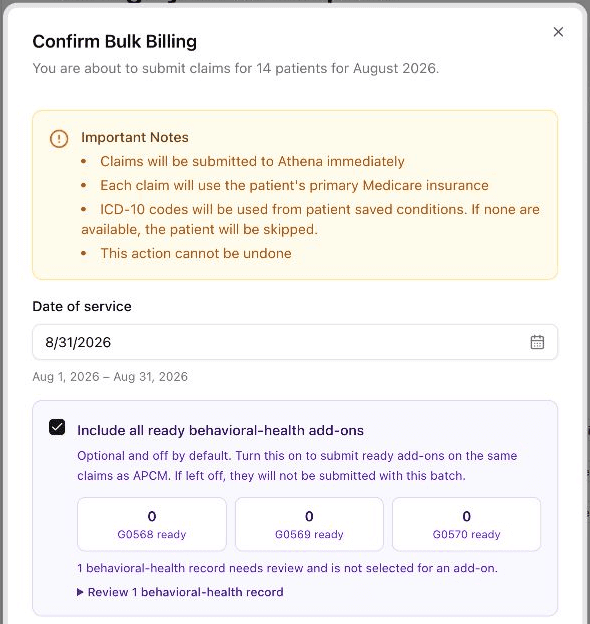
This demo preview has no ready add-ons and shows how blocked records are separated for review.
The option is unchecked by default. Patients needing review are not selected for an add-on and may continue through ordinary APCM if otherwise billable. Sematic rechecks selected add-ons before submission; a patient who is no longer ready fails visibly instead of submitting APCM only, while other eligible patients continue. Sematic cannot append the add-on after a base-only claim is submitted.
Status guide
The BH · BHI and BH · CoCM badges open a configured patient's monthly work. Consent on file confirms active, documented consent.
| Status | What to do |
|---|---|
| Set up BHI or Consent required | Complete setup or record or renew consent |
| Not started or In progress | Use the guided General BHI action or add the missing CoCM Care Events |
| Ready on the monthly card | Select Document in Athena |
| Documenting | Wait for the status to refresh; do not start a duplicate write |
| Documented | A billing user may select the proposed add-on |
| Ready on the billing card | Select Include add-on if it should be submitted |
| Needs attention | Follow the displayed action; verify uncertain Athena results before confirming or retrying |
| Billed | View the base and add-on codes in claim history |
CoCM special cases — clinical team
- Prior initial service: If the initial CoCM service predates Sematic tracking, select Record prior initial service and enter the exact chart reference; a claim or code alone is insufficient. The next qualifying Sematic month may then use
G0569. - Close or restart an episode: Select Close episode when goals are met or the patient moves to direct psychiatric care. The next qualifying month starts a new episode and uses
G0568, as it does after six complete intervening months without qualifying CoCM.
Stop behavioral-health services — clinical team
Select Stop BH services to record the patient's request and effective date. Sematic disables the care model, revokes active consent, and retains historical evidence. The patient remains in APCM; restarting behavioral-health services requires new consent.
When something needs review
- For an uncertain consent or documentation result, verify the displayed Sematic reference in Athena before confirming or retrying.
- For an uncertain claim result, do not submit again. Contact Sematic support.
- If the behavioral-health card is missing, ask an administrator to confirm enablement and access.
- If a CoCM team is missing, ask an administrator to confirm that it is active for the patient's department and billing practitioner.
Important: This guide explains Sematic's workflow; it is not clinical, coding, legal, or reimbursement advice. Your organization remains responsible for eligibility, payer requirements, code use, Athena configuration, consent, documentation, privacy, and retention. Payment is not guaranteed.